
PostgreSQL: Get Started
PostgreSQL is a very popular open-source relational database management system (RDBMS), known for its extensibility and feature-rich capabilities, making it suitable for mission-critical applications. Not to mention its active PostgreSQL community.
In the upcoming posts, I will start a series of PostgreSQL studies to:
- Explore PostgreSQL main features, installation, and basic administration tasks.
- Deploy a PostgreSQL cluster onto K8S with PostgreSQL Operator, validate backup and rolling upgrades.
- Create a simple Flash microservice application to connect to the PostgreSQL cluster and validate failover.
- Integrate the whole deployment into a CICD pipeline for automation.
- Create AWS RDS PostgreSQL, with S3 Block storage as a replica.
By the end of the series, we should be able to have a comprehensive understanding of PostgreSQL from a DevOps perspective.
PostgreSQL Basic
To begin, we will:
- Install PostgreSQL as a docker container on a local Ubuntu machine to get it up and running.
# ubuntu install docker
root@ubt-server:~# curl -fsSL https://get.docker.com -o get-docker.sh
root@ubt-server:~# sh get-docker.sh
root@ubt-server:~# docker --version
root@ubt-server:~# systemctl enable docker

# install PostgreSQL 15.0
root@ubt-server:~# docker run --name zack-postgres -e POSTGRES_PASSWORD=password -d postgres:15.0
root@ubt-server:~# docker ps
CONTAINER ID   IMAGE         COMMAND             CREATED        STATUS         PORTS     NAMES
b4fc638dfde3   postgres:15.0 "docker-entrypoint.s…" 7 seconds ago  Up 6 seconds   5432/tcp zack-postgres
- Run a simple PostgreSQL database with Docker Compose
# create docker-compose.yaml and run postgres and adminer from docker-compose
root@ubt-server:~# vim docker-compose.yaml

version: '3.1'
services:
  db:
    image: postgres:15.0
    restart: always
    environment:
      POSTGRES_PASSWORD: password
    ports:
    - 5000:5432
  adminer:
    image: adminer
    restart: always
    ports:
      - 8080:8080

# run docker compose
root@ubt-server:~# docker compose up
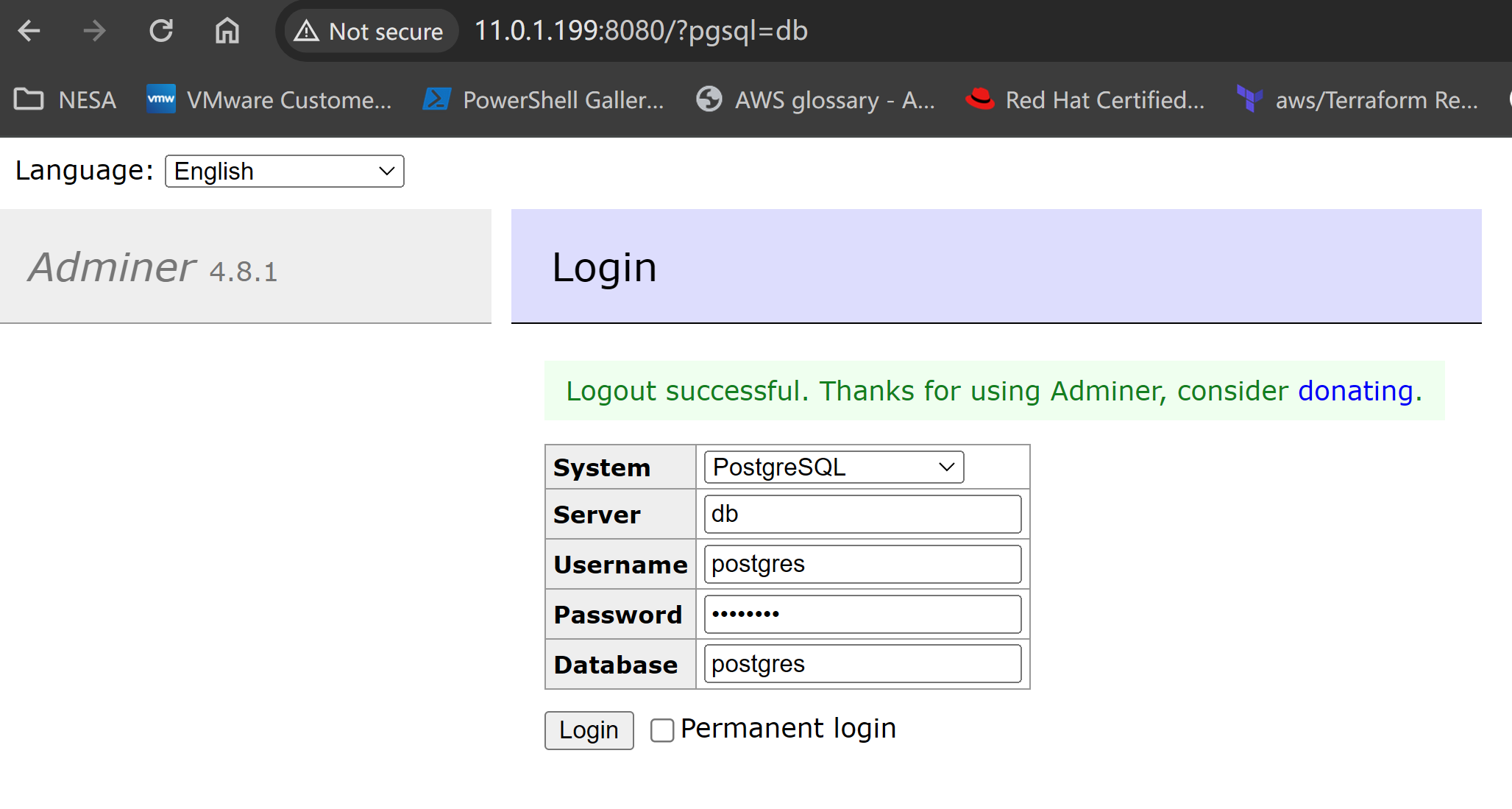
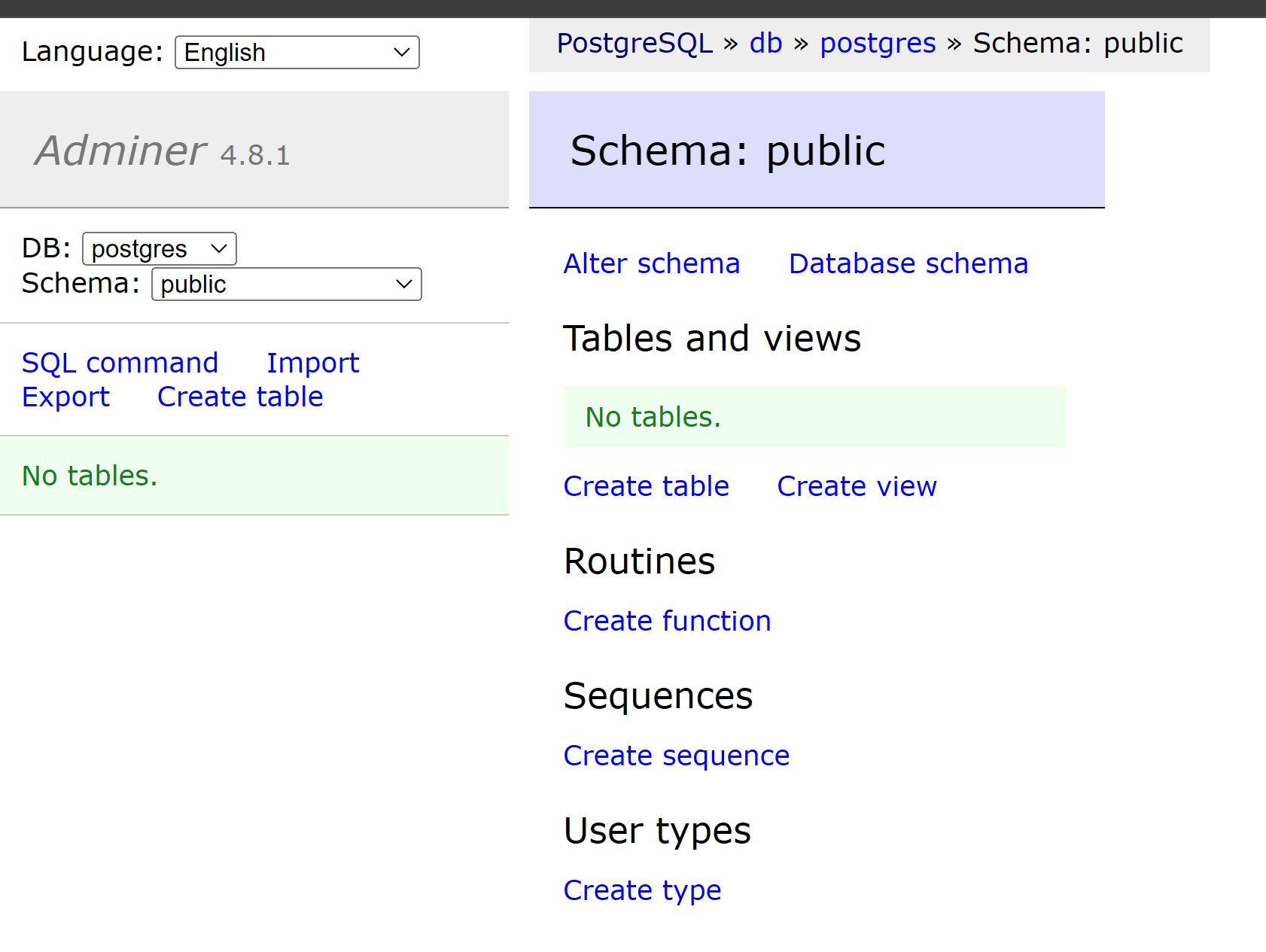
- Validate from the Adminer web console localhost:8080 with the password set in the environment variables
- Persist data to mount the PostgreSQL container volume, validate data table after start/stop container. PostgreSQL stores its data by default under /var/lib/postgresql/data. Here, we create a /pgdata folder on the local machine to mount PostgreSQL's default volume.
# create local Persist data directory /pgdata
root@ubt-server:~# mkdir pgdata
# run PostgreSQL to mount local Persist data and Bind a different port
root@ubt-server:~# docker run -d -it --rm --name zack-postgres2 -e POSTGRES_PASSWORD=password -v ${PWD}/pgdata:/var/lib/postgresql/data -p 5000:5432 postgres:15.0

PostgreSQL Database directory appears to contain a database; Skipping initialization

2024-01-08 00:58:47.540 UTC [1] LOG: starting PostgreSQL 15.0 (Debian 15.0-1.pgdg110+1) on x86_64-pc-linux-gnu, compiled by gcc (Debian 10.2.1-6) 10.2.1 20210110, 64-bit
2024-01-08 00:58:47.541 UTC [1] LOG: listening on IPv4 address "0.0.0.0", port 5432
2024-01-08 00:58:47.541 UTC [1] LOG: listening on IPv6 address "::", port 5432
2024-01-08 00:58:47.542 UTC [1] LOG: listening on Unix socket "/var/run/postgresql/.s.PGSQL.5432"
2024-01-08 00:58:47.545 UTC [28] LOG: database system was shut down at 2024-01-08 00:57:45 UTC
2024-01-08 00:58:47.547 UTC [1] LOG: database system is ready to accept connections
- Connect to DB container and validate
# enter the container
root@ubt-server:~# docker exec -it zack-postgres2 bash
# login to postgres
root@d7386c566872:/# psql -h localhost -U postgres
psql (15.0 (Debian 15.0-1.pgdg110+1))
Type "help" for help.
# create a table
postgres=# CREATE TABLE customers (firstname text,lastname text, customer_id serial);
CREATE TABLE
# add record
postgres=# INSERT INTO customers (firstname, lastname) VALUES ( 'Bob', 'Smith');
INSERT 0 1
# show table
postgres=# \dt
           List of relations
 Schema |   Name   | Type  |  Owner
--------+-----------+-------+----------
 public | customers | table | postgres
(1 row)
# get records
postgres=# SELECT * FROM customers;
 firstname | lastname | customer_id
-----------+----------+-------------
 Bob       | Smith    |           1
(1 row)
# quit
postgres=# \q
# exit db container
root@d7386c566872:/# exit
exit
- Add persist data in Docker Compose and run PostgreSQL from compose
# add persist data folder in compose yaml
root@ubt-server:~# vim docker-compose.yaml

version: '3.1'
services:
  db:
    image: postgres:15.0
    restart: always
    environment:
      POSTGRES_PASSWORD: admin123
    ports:
    - 5000:5432
    volumes:
    - ./pgdata:/var/lib/postgresql/data
  adminer:
    image: adminer
    restart: always
    ports:
      - 8080:8080

root@ubt-server:~# docker compose up
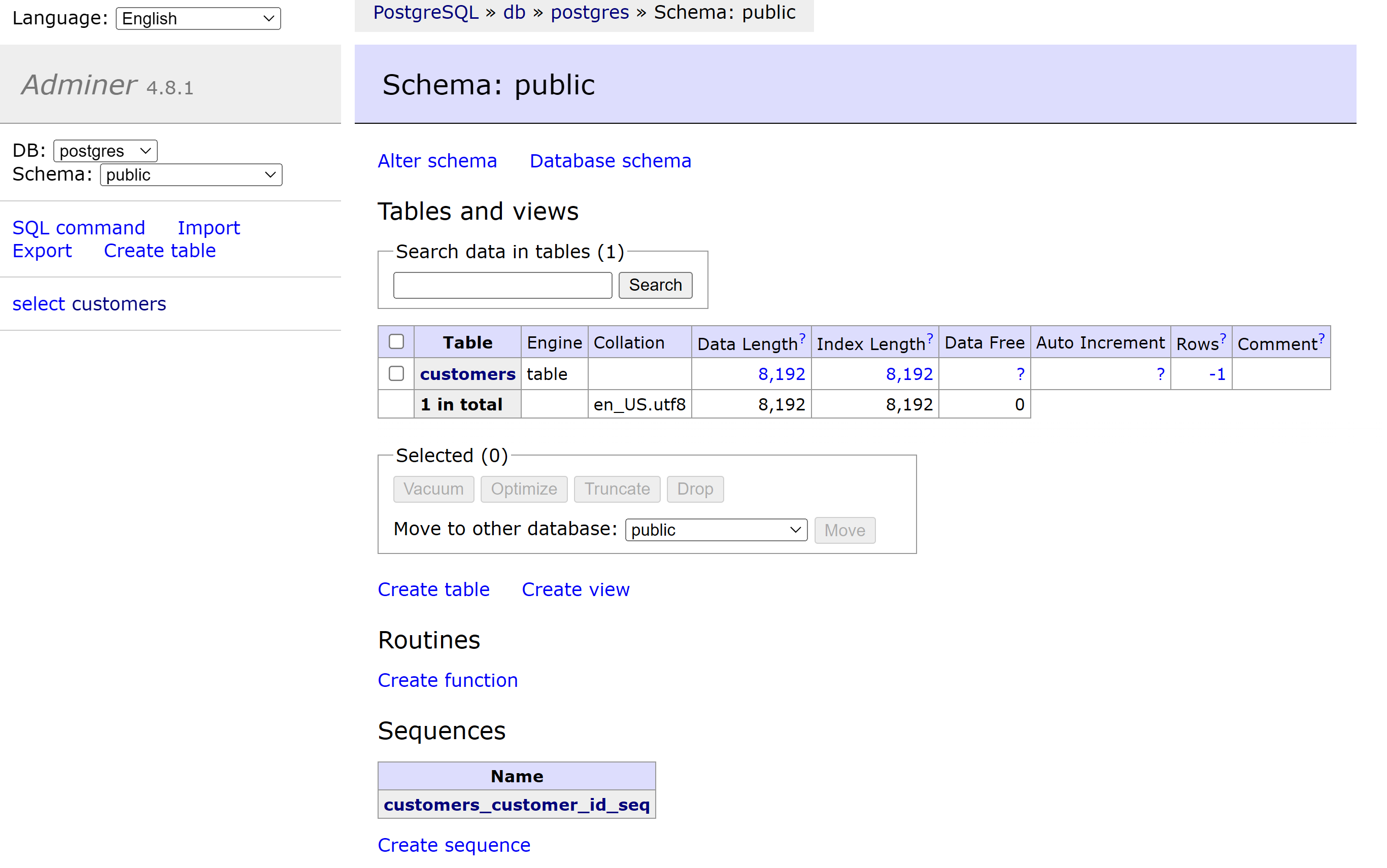
- Validate the previous table and record from the Adminer console. Table and record still there because of the persistent data mount.
PostgreSQL Configuration
Before jumping into replication, it is more important to explore the PostgreSQL configuration files to have a better understanding of its important config, take the default conf files out of a running database and learn them. Then, mount these conf files into the container, telling PostgreSQL to use our own configuration files to perform our preferred way.
To achieve this, we need the db user "postgres" to have an ID of 999 with access to custom conf files.
root@ubt-server:~/pgdata# chown 999:999 config/postgresql.conf
root@ubt-server:~/pgdata# chown 999:999 config/pg_hba.conf
root@ubt-server:~/pgdata# chown 999:999 config/pg_ident.conf

root@ubt-server:~/pgdata# ll *.conf
-rw------- 1 lxd docker  4821 May  8 00:30 pg_hba.conf
-rw------- 1 lxd docker  1636 May  8 00:30 pg_ident.conf
-rw------- 1 lxd docker   88 May  8 00:30 postgresql.auto.conf
-rw------- 1 lxd docker 29525 May  8 00:30 postgresql.conf

root@ubt-server:~# mkdir config
root@ubt-server:~# cd config/
root@ubt-server:~# cp *.conf /config

root@ubt-server:~/pgdata# chown 999:999 config/postgresql.conf
root@ubt-server:~/pgdata# chown 999:999 config/pg_hba.conf
root@ubt-server:~/pgdata# chown 999:999 config/pg_ident.conf
The official PostgreSQL documentation explains those configuration files as below:
- pg_hba.conf:
This file stands for "PostgreSQL Host-Based Authentication." It controls client authentication based on the host and user information. It specifies which hosts are allowed to connect to the PostgreSQL server, which databases and users they can access, and what authentication methods they must use. It's a crucial security measure for controlling access to the PostgreSQL server.
- pg_ident.conf:
This file, "PostgreSQL Identification Mapping," allows defining mappings between external (e.g., operating system) and internal (PostgreSQL) user names.
- postgresql.conf: Main configuration file for PostgreSQL which contains global settings to tailor its behavior to specific requirements and environment.
Create custom config file
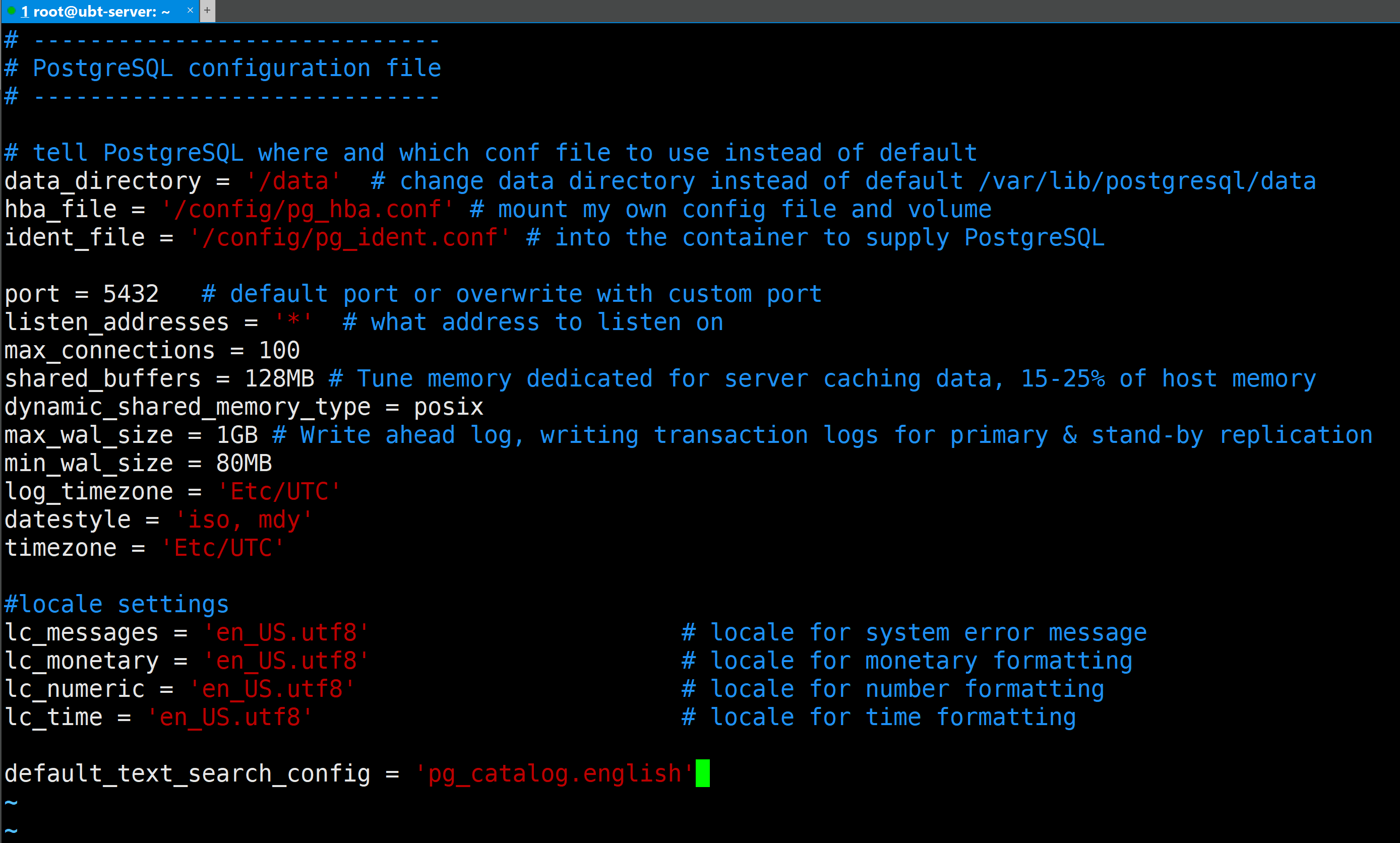
Now we can adjust the command by adding environment variables to run PostgreSQL from Docker and Docker Compose using our custom conf files.
root@ubt-server:~# vim docker-compose.yaml
version: '3.1'
services:
  db:
    container_name: postgres
    image: postgres:15.0
# important: passing argument to postgres container to tell where conf file is located, to match the custom conf file we created before when DB initiated
    command: "postgres -c config_file=/config/postgresql.conf"
    environment:
      POSTGRES_USER: "postgresadmin"
      POSTGRES_PASSWORD: "admin123"
      POSTGRES_DB: "postgresdb"
      PGDATA: "/data"
    volumes:
    - ./pgdata:/data
    - ./config:/config/
    ports:
    - 5000:5432
  adminer:
    image: adminer
    restart: always
    ports:
      - 8080:8080

root@ubt-server:~# docker run -it --rm --name postgres -e POSTGRES_USER=postgresadmin -e POSTGRES_PASSWORD=admin123 -e POSTGRES_DB=postgresdb -e PGDATA="/data" -v ${PWD}/pgdata:/data -v ${PWD}/config:/config -p 5000:5432 postgres:15.0 -c 'config_file=/config/postgresql.conf'

PostgreSQL Database directory appears to contain a database; Skipping initialization

2024-01-10 10:40:44.685 UTC [1] LOG: starting PostgreSQL 15.0 (Debian 15.0-1.pgdg110+1) on x86_64-pc-linux-gnu, compiled by gcc (Debian 10.2.1-6) 10.2.1 20210110, 64-bit
2024-01-10 10:40:44.685 UTC [1] LOG: listening on IPv4 address "0.0.0.0", port 5432
2024-01-10 10:40:44.685 UTC [1] LOG: listening on IPv6 address "::", port 5432
2024-01-10 10:40:44.685 UTC [1] LOG: listening on Unix socket "/var/run/postgresql/.s.PGSQL.5432"
2024-01-10 10:40:44.688 UTC [28] LOG: database system was shut down at 2024-01-10 10:30:42 UTC
2024-01-10 10:40:44.690 UTC [1] LOG: database system is ready to accept connections

root@ubt-server:~# docker compose up -d
WARN[0000] /root/docker-compose.yaml: `version` is obsolete
[+] Running 2/2
 ✔ Container postgres       Started                                                   0.4s
 ✔ Container root-adminer-1  Started
Conclusion
Now we can run a PostgreSQL container from Docker and Docker Compose with persistent data and custom configuration mounted into the container. In the next blog, we will discover primary and standby replication, WAL (write-ahead log) options.